

This procedure outlines how to run a Windows Energy Report on your Surface tablet. This report, otherwise known as a Power Efficiency Diagnostics Report, analyzes your computer looking for processes or configurations that may be causing your Surface to have a reduced battery life.
Run Energy Report on Surface Tablets: Running the Report
In order to run the report, you will need an elevated command prompt. If you try to run the report without an elevated command prompt, you will receive the following error:

One of the easiest ways to get an elevated command prompt and run the Energy Report is to perform the following steps:
- From the desktop, tap and hold (or right-click) anywhere on the screen to get the following menu
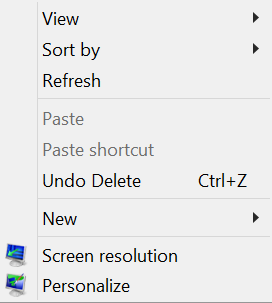
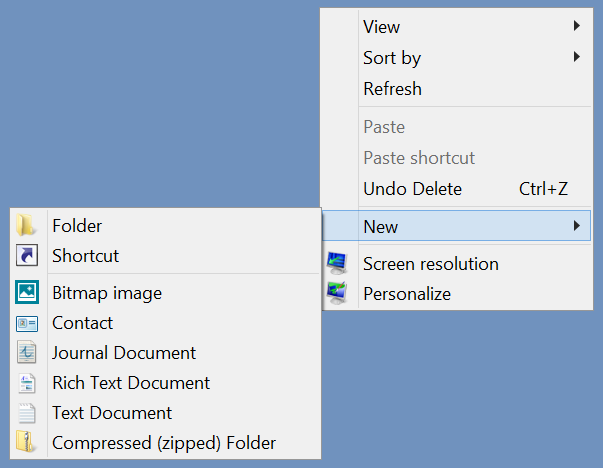
- Select New then Shortcut
- The Create Shortcut wizard will start. Type cmd in the “Type the location of the item” field and tap or click Next

- At the “What would you like to name the shortcut” screen, tap or click Finish

- A new shortcut will appear on your desktop named cmd.

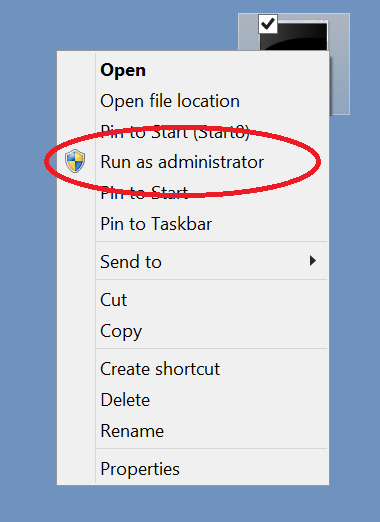
- Tap and hold (or right click) the cmd icon to get the following menu. From it, select Run as Administrator from the menu to start an elevated command prompt. You will get an User Account Control warning when you do so, tap or click Yes when you do
- Once you have the elevated command prompt, type the following command and press Enter: powercfg /energy

- The program will analyze your computer for 60 seconds then produce an HTML report in your system32 folder.
After the report is run, close the command prompt. You may delete the cmd shortcut or leave it intact for future use.
Run Energy Report on Surface Tablets: Running the Report
To read the report, you will need to move it from the system32 folder (as system permissions will not let you run the report in that location).
To move and open the report, do the following:
- Open Windows explorer and browse to c:\windows\system32 then use the search box and look for energy
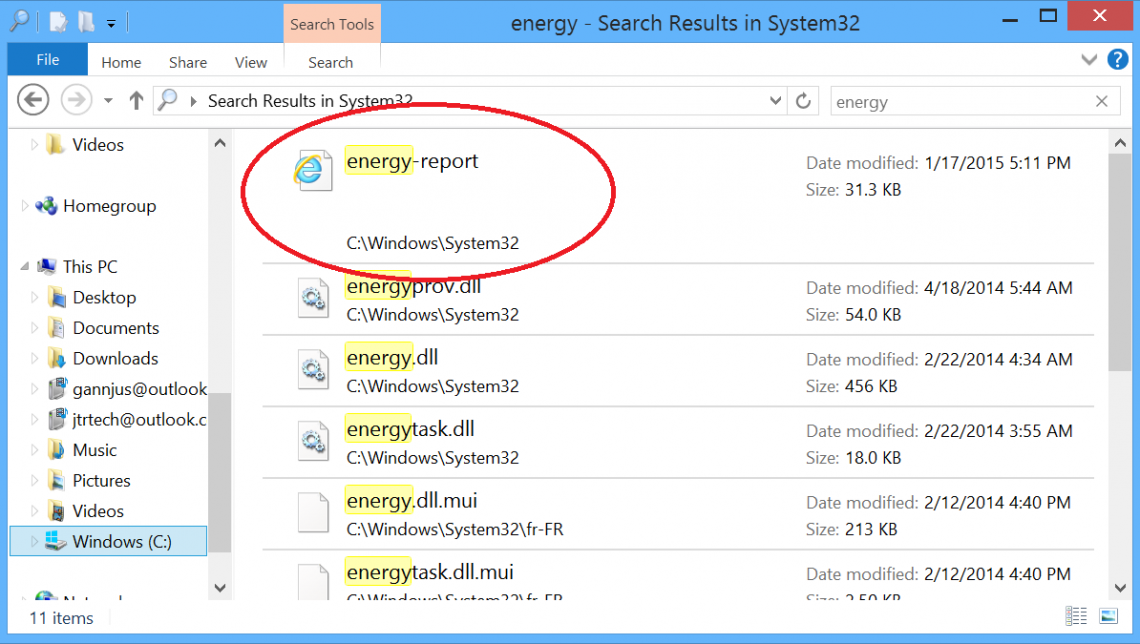
- Drag the energy-report entry (should be the first hit) to your desktop
- You will get a File Access Denied error. Tap or click Continue to proceed

- From the desktop, tap or click on energy-report.html to open it
You can find an example energy report (from a Surface Pro 2) here: Energy Report Example
This report can be very helpful for troubleshooting battery life issues on your Surface tablet. This is especially true when paired with a Battery Report to analyze the battery hardware.